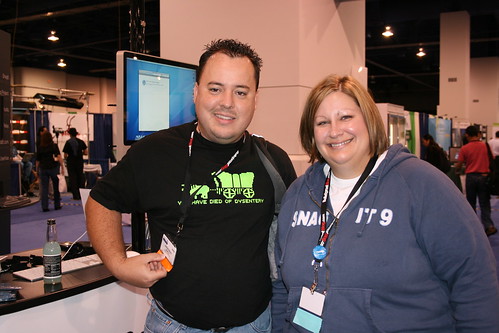
 =) Bnpositive Communication is just a guy. A guy named Jason. Hello! I'm Jason!
I like technology. I also like being helpful to people, so when I can combine my knowledge about technology, the Internet, social media, Internet marketing, content development, search engine optimization (SEO), search engine marketing (SEM) and all those other things you're always hearing about, it makes me happy. Thus the big bright yellow face of a smile you see everywhere with me.
I've been helping individuals, businesses and organizations with their technology and online needs for almost 20 years now. Do you have a question about something I can help you with? Just ask. Let me know and I'll do what I can to help you out.
To give you a little history, "Bnpositive" started back in the early 90's when I started connecting to America Online with a 14.4kbps dial-up modem and needed a screen name to be identified by in chat rooms. Bnpositive is a play off of my last name and my general outlook on life as "being positive". My blood type is even B+.
America Online wasn't my first taste of technology. Back in the day, it was the TRS-80 computer we had growing up where we'd write simple programs and save them to a cassette tape. Yeah, that was data management back then! I was also always eager to get my allotted time on the Apple IIe computers we had in grade school so I could play "Oregon Trail" (check-out that shirt below!). That interest grew through school every year. In high school our art department had an Amiga computer that I got my first taste of computer graphic design and development.
Oddly enough I never completed a computer class in college. I've taught myself everything I know about computers and technology. I believe that experience has helped me gain an understanding and ability to share new technology information with others easily.
Be sure to read my blog for all the current things I'm thinking about and doing.